Table of Contents (12 sections)
What is a Smart Home Hub?
A smart home hub is a central device that connects and manages various smart devices within your home, such as lights, thermostats, security cameras, and appliances. This device acts as a translator for different communication protocols, allowing devices from multiple manufacturers to work seamlessly together. For instance, while a Philips Hue light bulb might use Zigbee technology, a Nest thermostat may rely on Wi-Fi. By employing a smart home hub, you create a unified ecosystem that can be controlled through a single app or interface.
The rise in popularity of smart home technology, particularly evident in a survey showing that over 50% of U.S. households owned at least one smart device by 2025, underscores the importance of hubs for managing these devices effectively. Moreover, with the proliferation of IoT (Internet of Things) devices, a smart home hub enhances security, convenience, and control, making it an essential part of modern home life.
Prerequisites for Setting Up a Smart Home Hub
Before diving into the setup process, ensure that you have the following prerequisites:
- Stable Internet Connection: Your smart home hub needs to connect to your Wi-Fi network to communicate with devices and the cloud.
- Power Outlet: Most hubs need to be plugged in, so have a convenient power source nearby.
- Smart Devices: Decide which devices you want to connect, such as smart lights, speakers, or security cameras.
Tip: Create a list of all the devices you want to include in your smart home ecosystem to ensure compatibility with your chosen hub. Checking manufacturer compatibility is crucial because not all devices are universally supported.
Step 1: Choose Your Smart Home Hub
Selecting the right smart home hub is the first critical step to a successful setup. There are multiple options available, including:
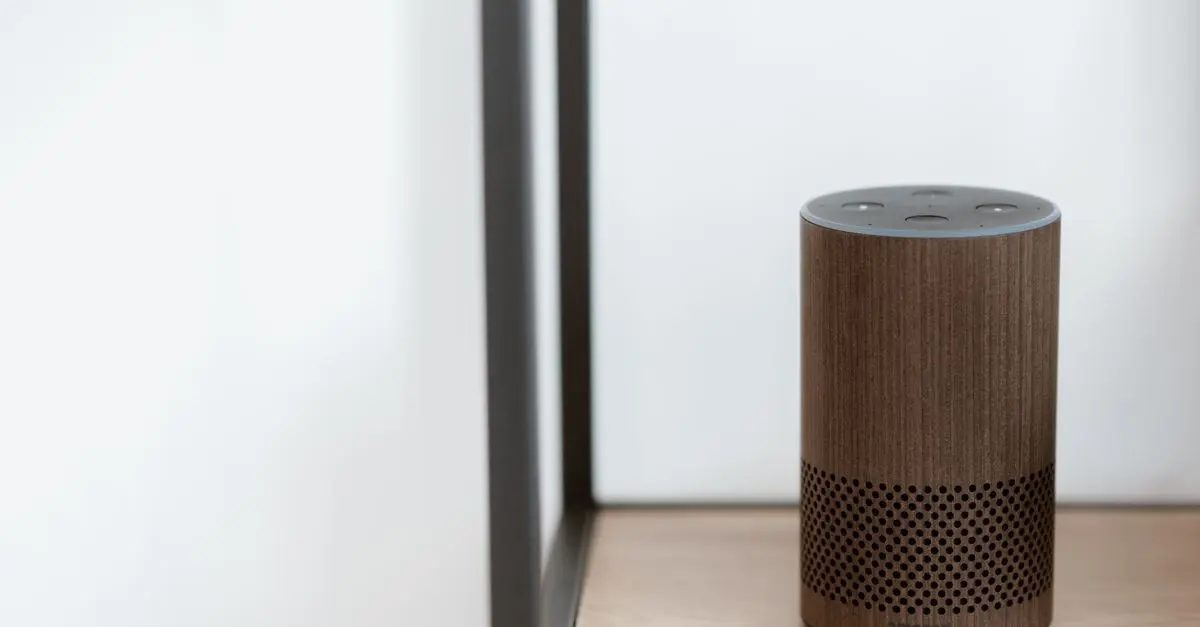
- Smart Speakers: Such as Amazon Echo or Google Nest, which often have built-in hubs.
- Dedicated Hubs: Devices like Samsung SmartThings or Hubitat offer more comprehensive capabilities and compatibility.
When choosing a hub, consider:
- Device Compatibility: Ensure that the hub supports the brands and types of devices you intend to use.
- User Interface: A user-friendly app can significantly enhance your experience.
- Integration Options: Look for hubs that work well with voice assistants like Alexa, Google Assistant, or Apple HomeKit.
Comparison Table of Popular Smart Home Hubs
| Hub Type | Compatibility | User Interface | Voice Control |
|---|---|---|---|
| Smart Speaker | Most major brands | Excellent | Yes |
| Dedicated Hub | Wide range of brands/products | Good | Varies |
| DIY Solutions | Custom devices only | Dependent on setup | Limited |
Step 2: Connect Your Hub to the Internet
Once you have chosen your hub, the next step is to connect it to your Internet. This can typically involve:
- Plugging the hub into power and waiting for it to boot up.
- Using the accompanying app or web interface to follow the on-screen setup instructions.
- Connecting the hub to your Wi-Fi network, making sure to input the Wi-Fi password correctly.
Common Errors to Avoid:
- Ensure that you are near your router for a strong initial connection.
- Forgetting to select the correct Wi-Fi network if you have multiple.
- Ignoring firmware updates, which could improve performance and security.
Step 3: Download the Hub's App
To manage your smart home devices, download the app associated with your smart home hub. This app serves as the primary control interface for your smart home ecosystem. Follow these steps:
- Search for the hub's app in your device's app store (e.g., Google Play or Apple App Store).
- Install the app and make an account if required.
- Log in to the app and ensure it recognizes your hub.
Pro Tip: Check for any tutorials or support documentation available through the app. Many manufacturers provide helpful tips and troubleshooting advice directly within the app.
Step 4: Add Devices to Your Hub
Now comes the exciting part: connecting your smart devices to the hub. Here’s how:
- In the hub’s app, find the “Add Device” option.
- Choose the type of device you wish to add.
- Follow the instructions to put the device in pairing mode (this often involves pressing a button).
- The app should automatically find and connect to the device.
Common Pitfalls:
- Not following the pairing instructions carefully can lead to failed connections.
- Ensure your smart devices are powered and within range of the hub during this process.
Step 5: Automate Your Smart Home
Once all devices are connected, it’s time to create automations and routines. Automations are rules you set based on conditions. For example:
- If the front door opens, then turn on the hallway lights.
- At sunset, turn on outdoor lights.
This can all be accomplished through the hub’s app, often featuring a straightforward automation interface.
Example: You might set a schedule for your thermostat to adjust the temperature automatically throughout the day, ensuring comfort and energy efficiency.
Checklist Before You Start
- [ ] Ensure you have a stable internet connection.
- [ ] Plug in your smart home hub and ensure it’s powered on.
- [ ] Download the associated app.
- [ ] Confirm which smart devices you wish to connect.
- [ ] Check compatibility of devices with your hub.
Quiz on Smart Home Setup
> 🧠 Quiz rapide : What is the main purpose of a smart home hub?
> - A) To provide security
> - B) To connect and manage smart devices
> - C) To enhance audio quality
> Réponse : B — A smart home hub connects and manages multiple smart devices to create a cohesive system.
Glossary
| Terme | Définition |
|---|---|
| Smart Home Hub | A device connecting various smart devices for management. |
| Automation | Rules set to perform certain actions based on conditions. |
| IoT | Internet of Things; network of devices connected to the internet. |